The basics
Jlerts puts things on your stream. There are four kinds:
- Alerts pop up when something happens (a follow, a sub, a tip), then go away.
- Goals stay on screen and count up (e.g. "New followers: 47/50").
- Widgets stay on screen and change when you or chat tell them to (e.g. a death counter).
- Chat overlays show your Twitch chat on stream.
You make them in the app, then drag them onto the big canvas in the middle. The canvas is your stream: where you put something is where it shows in OBS. Lots overlapping? The 👁 on a card hides it on the canvas while you work (it still plays on stream).
Builder tips
- Snapping: layers line up with the edges, the middle and each other while you drag or resize them. Hold Alt to place freely.
- Room around (for a frame): makes the canvas bigger on every side without moving anything, so you can add a frame or plate around it.
- Opacity: the slider under a picture, video or text makes it see-through.
- Ctrl+Z undoes, Ctrl+wheel zooms, Space plays the alert.
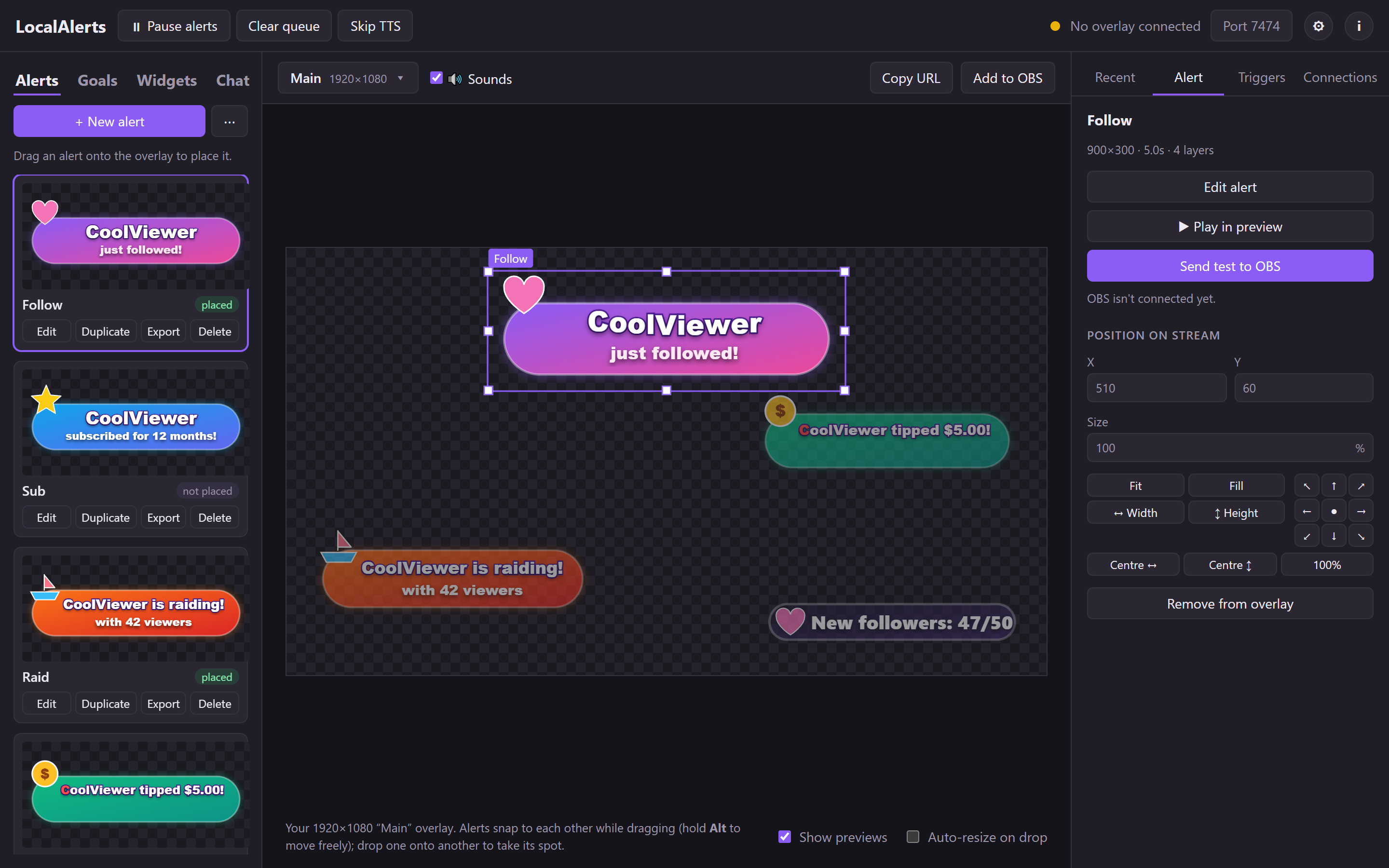
Left: your alerts, goals, widgets and chats. Middle: your stream. Right: what's happening and your triggers.
New to it all? Follow the step-by-step setup first: install, add to OBS, connect Twitch, make your first alert.
Want something no editor can make? Build your own widgets with HTML, CSS and JavaScript: two step-by-step tutorials (a spooky chat box and a slime goal), with live demos and free downloads.
Variables
A variable is a blank that fills itself in. You write it in curly brackets, and when the alert plays it's swapped for the real thing.
{user} just followed!→ Stream shows: PixelPanda just followed!
You don't need to remember them. Click a text layer, then { } Insert variable under the text box. Search, click one, and it goes where your cursor is.
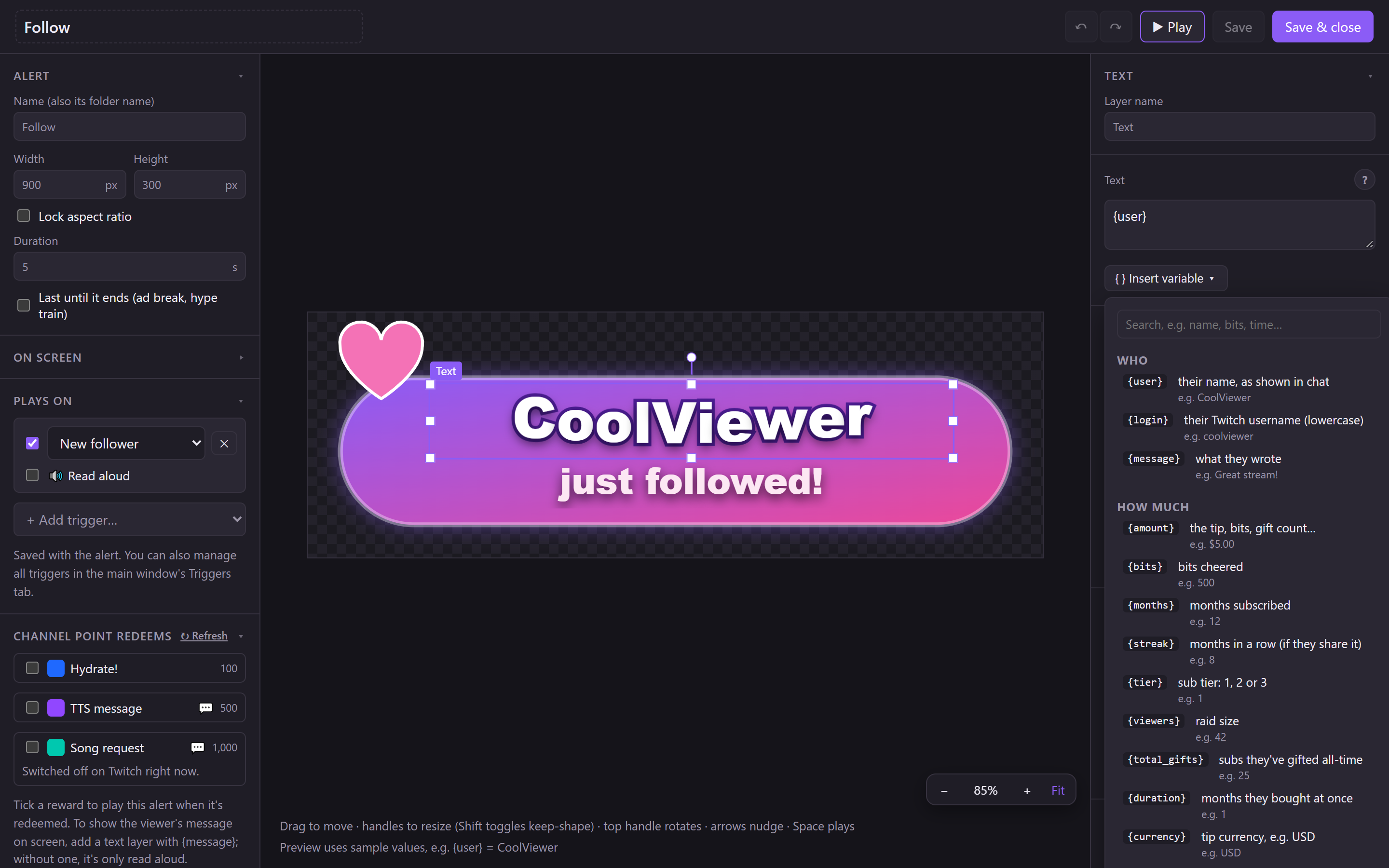
Every variable, with what it means and an example.
The ones you'll use most
| Write | Shows |
|---|---|
{user} | Their name, e.g. PixelPanda |
{amount} | How much: the tip, bits or gift count |
{message} | What they wrote |
{months} | How long they've subscribed |
{viewers} | How many people came in a raid |
{time} {date} | The time and date now |
Parts that only show sometimes: [ square brackets ]
Not everyone writes a message with their tip. Put the message part in square brackets and it simply disappears when there's no message.
{user} tipped {amount}[: "{message}"]With a message → PixelPanda tipped $5: "Great stream!"
Without → PixelPanda tipped $5
A backup word: the | line
{message|No message} shows the message, or "No message" if there isn't one. {streak|months} uses the streak, or the months if there's no streak.
Widgets have their own
A death counter uses {count} (and {game}), a timer uses {time}, top supporters use {list}. The Insert variable list shows them first when you edit a widget's look.
Goals
A goal counts something (followers, subs, bits, tips…) towards a target and shows it on stream.
- Go to the Goals tab and click + New goal. Pick what it counts and the target.
- For a tip goal, pick your currency symbol ($, £, €…).
- Click Look, then ✨ Goal bars, and pick a style: Gaming, Neon, Cosy, Pixel, Glass or RPG. You get a frame, an icon and a bar that fills up as the goal grows.
- Drag the goal onto the stream canvas.
In the look, {goal_progress} writes it out with units: "$10 of $100" for tips, "100 bits of 1000 bits" for bits. {goal_percent} is how full it is (0 to 100).
Make your own bar: add any picture, then under Progress bar click Use as the goal's bar. Only as much of the picture shows as the goal has reached, and it slides along as the goal grows.
Widgets
Widgets are things that stay on screen and change live: counters, timers, your latest follower, top supporters, a "Be right back" sign.
- Go to the Widgets tab (left side) and click + New widget.
- Pick one, e.g. Death counter. Its settings open.
- Drag it from the list onto the stream canvas.
- Click Look to change its words, font, colours and add a picture.
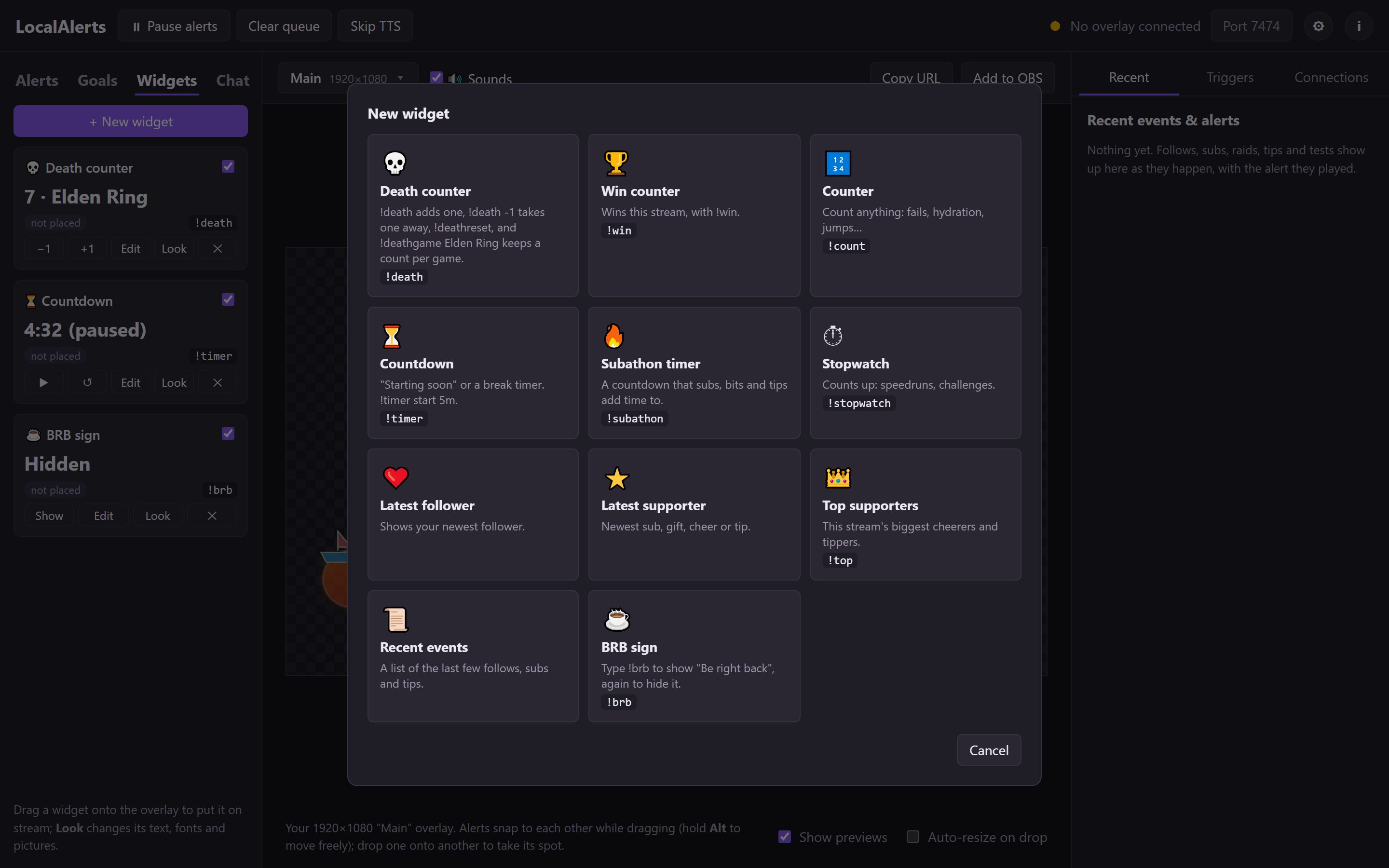
Ready-made widgets. Each is fully changeable.
Controlling a widget
Three ways, use any:
- Buttons in the Widgets tab (+1, −1, ▶ start, Show).
- Chat commands: you (and mods, if you allow it) type them in Twitch chat.
- Channel points: link a reward, e.g. viewers redeem "Add a death".
Example: the death counter
| Type in chat | What happens |
|---|---|
!death | Adds one death |
!death 5 | Adds five |
!death -1 | Takes one away (oops) |
!deathreset | Back to 0 |
!deathset 12 | Sets it to exactly 12 |
!deathgame Elden Ring | Switches to Elden Ring's count. Each game remembers its own, so you carry on where you left off. |
!death show / !death hide | Shows or hides it |
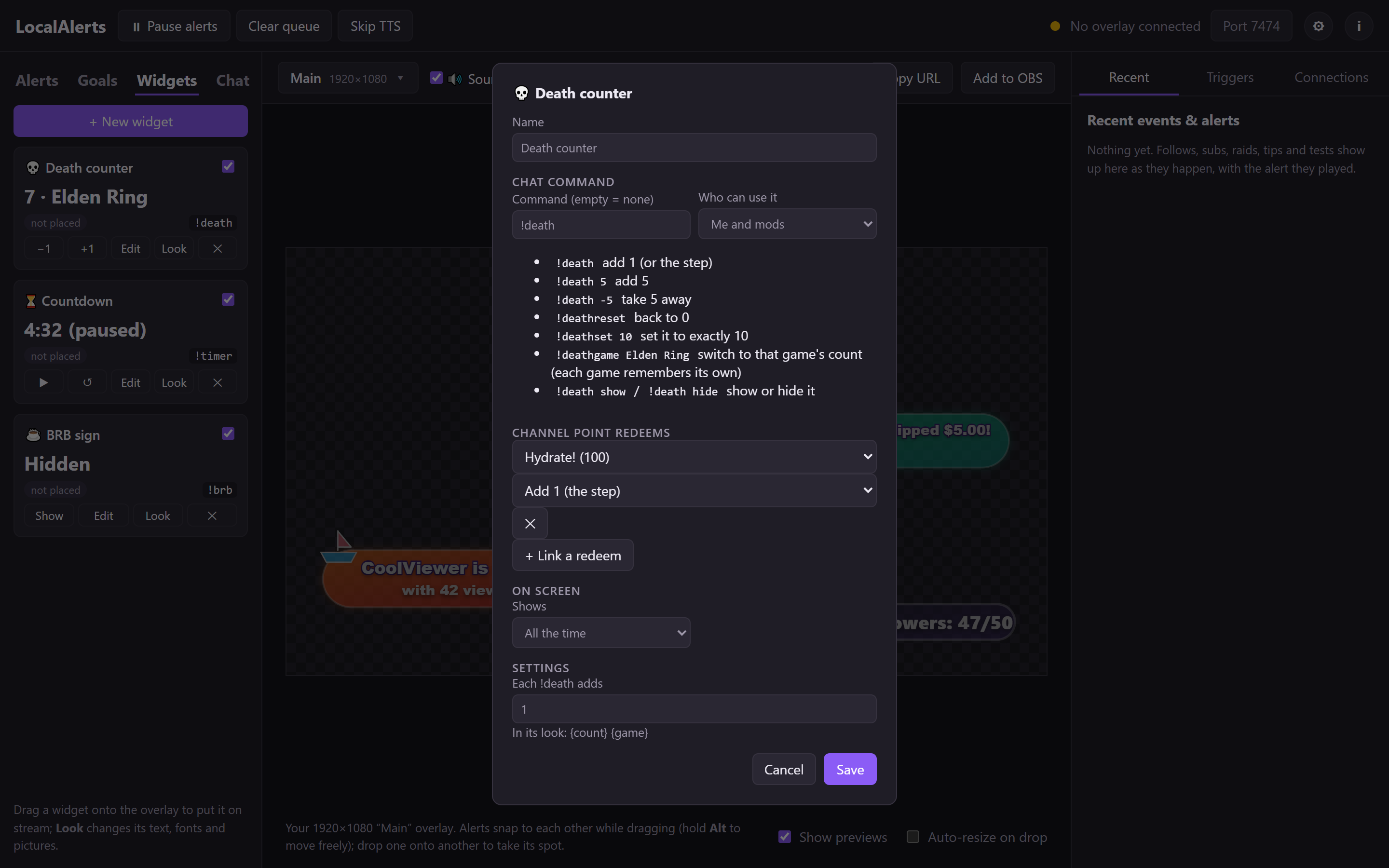
A widget's settings: the command, who can use it (only you, mods, VIPs or everyone), redeems, and when it shows.
When does it show?
- All the time: always on screen.
- For a while after each change: pops up for a few seconds when it changes, then hides.
- Only when turned on: hidden until you turn it on (like a BRB sign:
!brbon,!brbagain off).
Timers
!timer start 5m starts a 5-minute countdown. Also !timer pause, !timer add 2m, !timer reset. You can write minutes (5m), seconds (90s) or hours (1h). A subathon timer adds time by itself for every sub, 100 bits or tip, while it runs.
Live viewers
Shows how many people are watching right now. It asks Twitch every 30 seconds (Twitch updates the number about once a minute). In its look, {viewers} is the number, {peak} the most this stream, and {live} says LIVE or OFFLINE. While you're offline it shows your offline text instead.
Sponsor banner
- Add a Sponsor banner widget and click Choose sponsor picture…: their logo or banner (PNG, JPG, GIF or WebP).
- Type a tagline or discount code if you want one (e.g. "Use code STREAM for 10% off"). It shows under the picture.
- Pick how it comes on screen: pops in where you placed it, or slides across the whole screen at that height.
- Set Pops up by itself every (e.g. 15 minutes; 0 = never by itself) and tick Only while I'm live if you like.
You or your mods can also type !sponsor to show it right now, or !sponsor off to take it down. A channel-point reward can show it too.
More widgets
- Chat poll:
!poll startstarts the poll you set up, or type your own:!poll start Best snack? | Crisps | Chocolate. Everyone votes with!vote 1(or the choice's name), once each.!poll endshows the winner. For bars, give a picture Fill by{percent1},{percent2}… - Spin wheel: type your choices, then
!spin(or a channel-point reward) spins it. It lands on a random one and shows it as{result}. - Stream boss: bits, subs and tips damage the boss. Whoever brings it to 0 becomes the new boss, with more health. Use
{percent}for a health bar. - Supporter ticker: your latest supporters scrolling along the bottom (its text uses the Scroll sideways effect).
- End credits: everyone who raided, subbed, cheered, tipped or followed this stream, plus your top chatters and channel-point redeemers.
!creditsrolls them; they start fresh each time you go live. - Tip ticker: like the supporter ticker, but only tips.
While you design a widget's look, the builder fills it with pretend data (made-up viewers, votes, a boss mid-fight, a song) so you can see how it will look on stream.
Music: Now playing and song covers
Add Spotify, YouTube Music Desktop or Now playing (any player) from the Widgets tab. Each comes ready with the song's cover, title, artist, a progress bar and the time played and left.
- Spotify and most players work straight away: Windows tells the app what's playing.
- YouTube Music Desktop (Pear Desktop): in that app, turn on Plugins → API Server, then click Connect in the widget's settings and Allow in the box YouTube Music shows.
- In the look:
{title},{artist},{elapsed},{remaining}, and{progress}as a bar's Fill by. 💿 + Song cover adds the cover picture to any music look.
Heart rate
Shows your live heart rate on stream: {bpm}, with this stream's lowest {min}, highest {max} and average.
- Pulsoid Pro: use the Pulsoid app with your watch or chest strap, then click Log in with Pulsoid in the widget (Pulsoid asks for its paid BRO plan for this), or paste a Pulsoid token.
- HypeRate: coming soon. If you have your own HypeRate developer key you can paste it now, with your HypeRate ID.
- Free alternative: Pulsoid's and HypeRate's own ready-made widgets are free. Copy a widget link from their website and add it to OBS as a Browser Source.
Twitch polls and predictions
Add Twitch poll or Twitch prediction from the Widgets tab. When you (or a mod) start one on Twitch, it pops onto your stream by itself with the same question and choices, updates live as people vote or bet, shows the winner, then pops off a few seconds later.
- Pick a look in its settings: Gaming, Cosy, Just Chatting or Fantasy. Only the choices the poll has are shown (no empty boxes), and a bar under the question shrinks as time runs out.
- Predictions show points, people and the odds for each side, then LOCKED, then the winner (or REFUNDED).
- The Test button plays a pretend one on your overlay. Nothing is sent to Twitch.
- Twitch only has polls and predictions on Affiliate and Partner channels. Log out of Twitch and in again once (Connections) so the app may read them.
Showing and hiding widgets
Every widget answers to its command with show and hide, e.g. !spotify hide (also !spotifyhide). Hide keeps it off screen until shown again, even on widgets set to "All the time". For music, heart rate, viewers and lists, the plain command (!spotify) switches it on and off. Music widgets also hide by themselves while Spotify / YouTube Music is closed.
Chat commands
Commands are words starting with ! typed in your Twitch chat. Jlerts listens for them. Only you and your mods can use them, unless you allow more people for a widget.
| Command | What it does |
|---|---|
!skiptts | Stops what's being read aloud |
!pausealerts | Pauses alerts; again to resume |
!clearqueue | Drops alerts that are waiting |
!pin (as a reply) | Shows the message you replied to on the Highlighted message overlay |
!unpin | Clears it |
| Widget commands | Whatever you named them, e.g. !death, !timer, !brb, plus show / hide |
Rename the first three (or switch them off) in ⚙ Settings → Overlay commands, where Save a list of my commands writes every command that's on (and who can use it) to a text file for a Twitch panel or a bot. Chat overlays hide !commands by default, so they don't clutter your stream.
Chat overlays
Go to the Chat tab and click + New chat overlay. Pick a type. Each chat overlay is its own OBS source, so click Add to OBS on it.
- Chat boxes (tall or wide) and a ticker show chat like a list.
- Full-screen effects make messages fly, snow, bounce, bubble or bounce like pinballs.
- Emote wall shows only the emotes, big.
- Highlighted message shows one message big: a mod replies
!pinto a message.
To put your chat in a frame or a TV: in the Chat Designer click ✨ Templates → Chat frames and pick one. That's it.
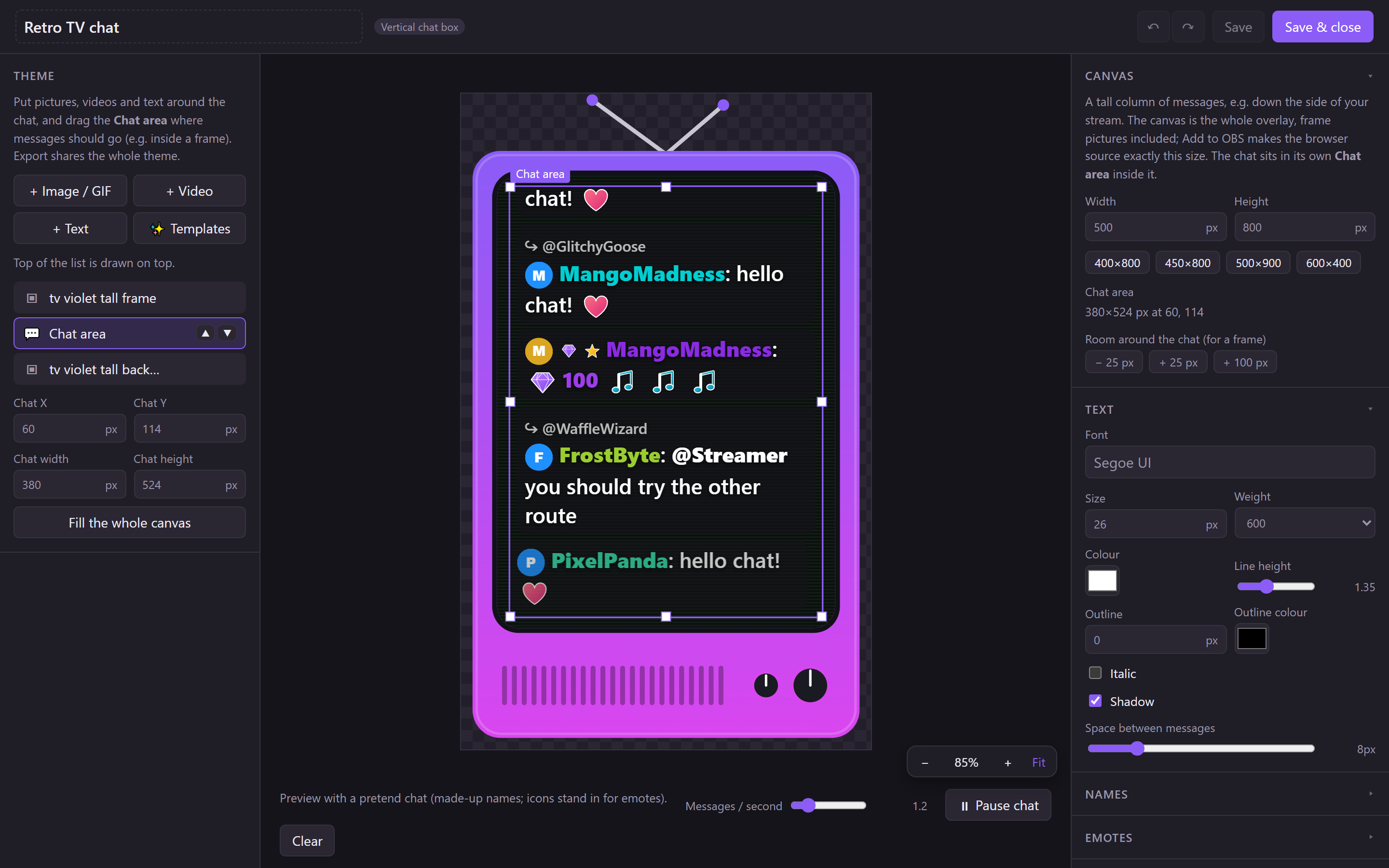
The Chat Designer. Settings on the right fold up: click a heading to open or close it.
Tips: Streamlabs, StreamElements, Ko-fi
Tips come in through the Connections tab (right side of the app). Each needs a code from your account there, copied once.
StreamElements: copy your JWT Token
In Jlerts, the Open StreamElements → Account → Channels link takes you straight there. Paste the token into the box (or press Paste): it tells you straight away whether it looks right, then click Connect StreamElements.
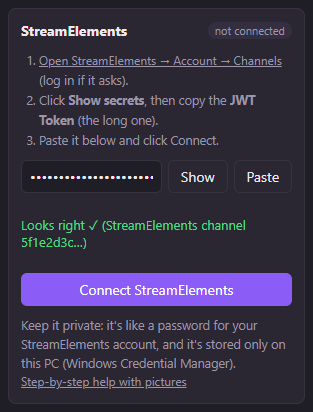
The token is like a password: it stays on your PC (Windows Credential Manager) and is never sent to us.
Streamlabs: copy your Socket API Token
- Click Streamlabs → Settings → API Settings in the Streamlabs box (or open it on streamlabs.com).
- Go to the API Tokens tab and copy Your Socket API Token.
- Paste it into the box and click Connect Streamlabs.
Ko-fi
- Click Set up Ko-fi: Jlerts shows you a webhook address to copy.
- On Ko-fi, open Settings → API: paste that address into Webhook URL and click Update, then copy the Verification token just below it.
- Paste the Verification Token back into Jlerts, then click Test to send a pretend tip.
Read chat aloud
Jlerts can read your chat out loud as it comes in, with the same voices as alerts. Turn it on in ⚙ Settings → Read chat aloud…, or type !readchat on (you or a mod; !readchat off stops it).
- Say who wrote it: "PixelPanda said: hello", only when someone else starts talking, or never.
- Catch-up mode: when lots of messages are waiting, it reads faster until it catches up. Past your limit, the oldest are dropped.
- Alerts go first: it waits while an alert is on screen. Skip TTS (or
!skiptts) skips the message being read. - Filters: bots,
!commandsand links are skipped; messy names are tidied ("xX_Gamer123_Xx" → "Gamer"), or give someone a nickname. Your word filter applies too: blocked words are said as "bleep". - Only while I'm live: it stays quiet until you go live on Twitch. You can also switch it on and off from the tray menu.
Word filter
The word filter cleans what viewers write before it reaches your stream: chat overlays, alert messages, names and read-aloud. It's in ⚙ Settings → Word filter.
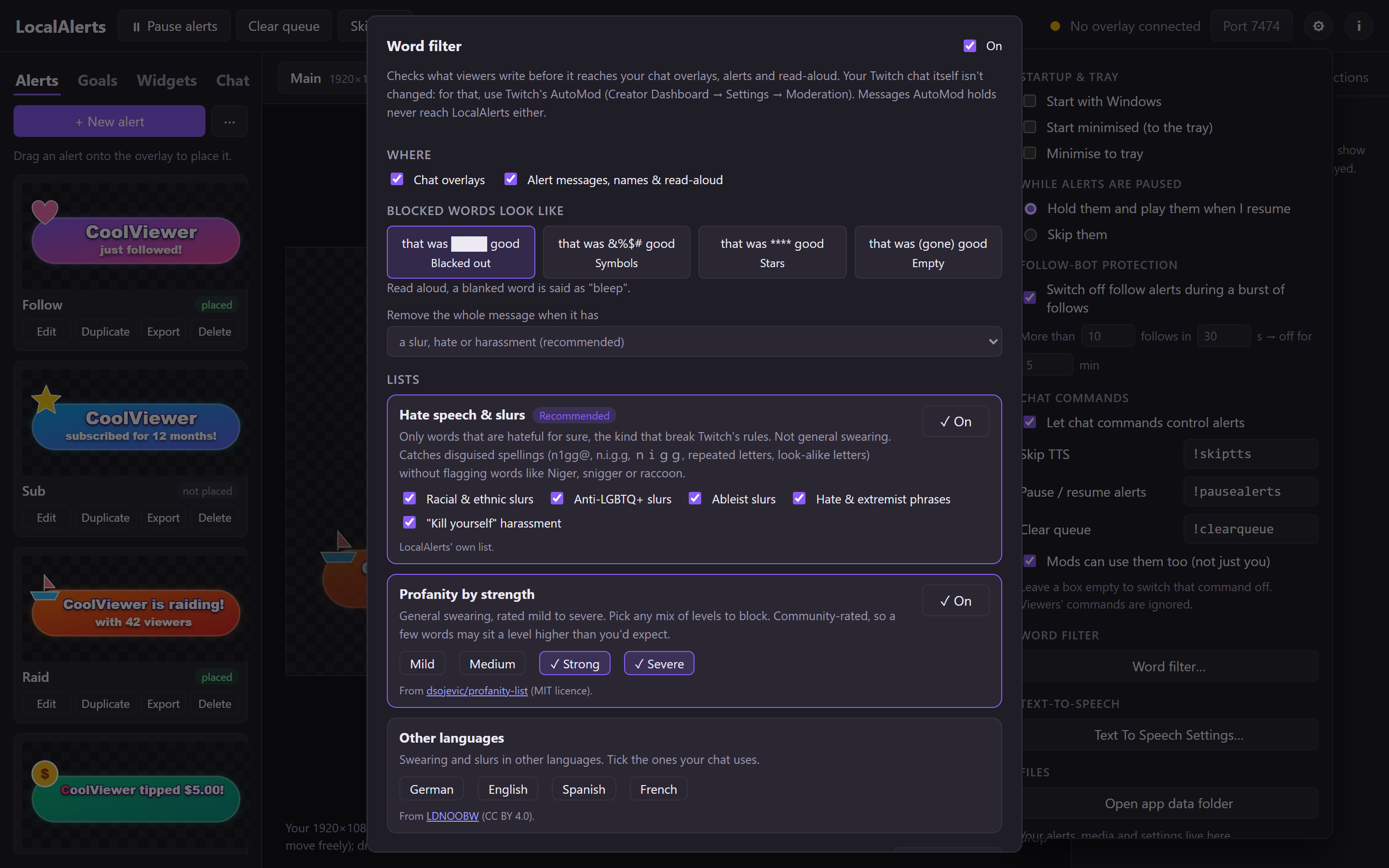
- Hate speech & slurs is on from the start. It only has words that are hateful for sure, not normal swearing. It still catches them written sneakily (like n1gg@ or with dots between letters).
- Want swearing blocked too? Turn on Profanity by strength and tick the levels you want.
- Blocked words look like: pick blacked out, symbols, stars or empty. Read aloud, they're said as "bleep".
- Really bad messages (slurs, by default) are removed completely.
- Have your own list? Your lists → + Import a list. A text file with one word per line is enough.
- Not sure? Type a message in Try it and see what viewers would see.
This only cleans your stream. Your real Twitch chat is looked after by Twitch's AutoMod (Creator Dashboard → Settings → Moderation).
Overlay profiles & OBS scenes
A profile is one overlay layout with its own size, e.g. one for normal (16:9) and one for vertical (9:16) streams. Make one from the profile menu (the Main ▾ button above the canvas).
Each profile is its own OBS source. Only one should play sounds, or you'd hear everything twice. That's the one with 🔊 Sounds ticked: the active profile. You can switch it from the tray icon too.
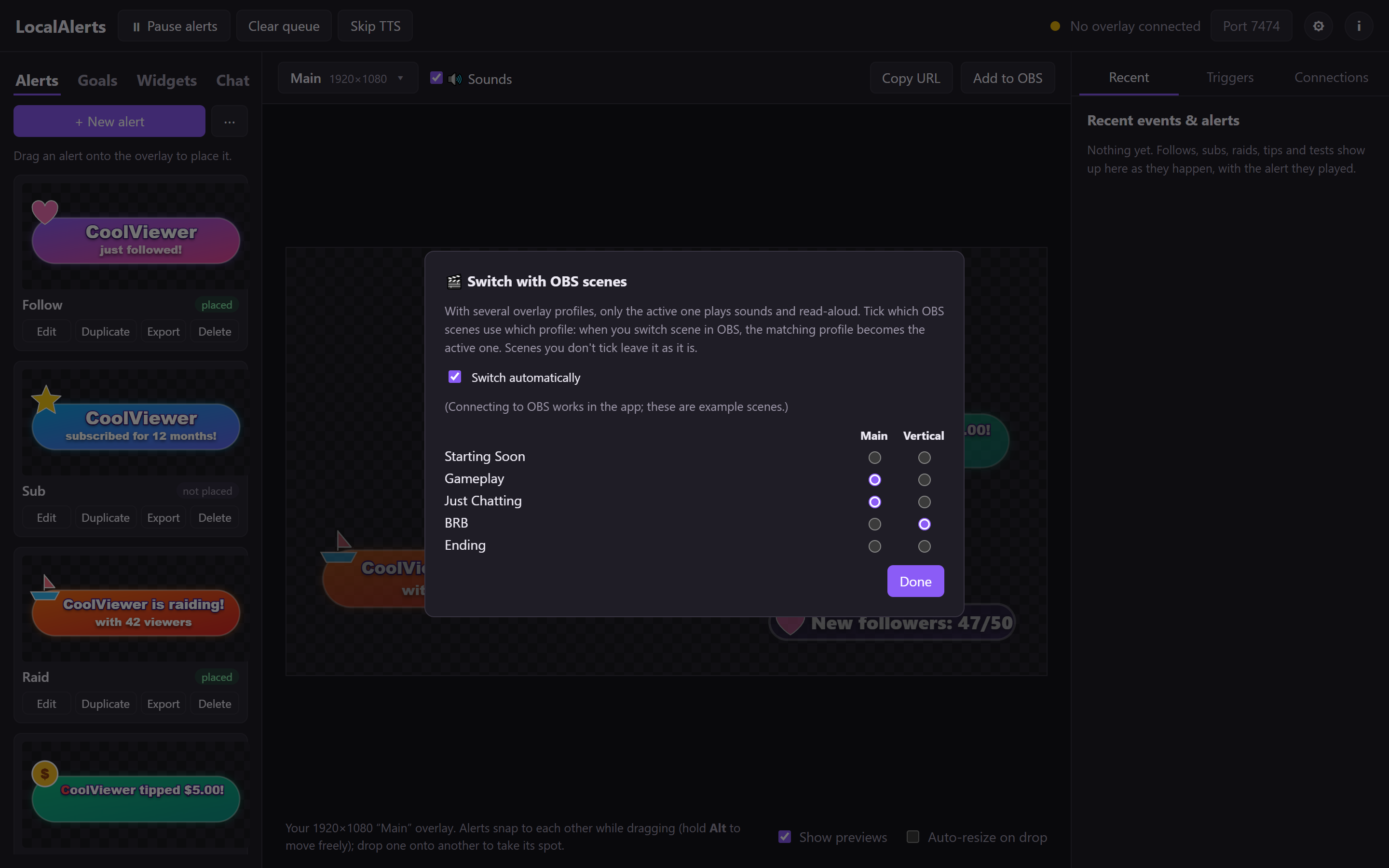
Switch with OBS scenes (in the profile menu) does it for you: tick which scenes use which profile, and when you change scene in OBS the right profile plays the sounds.
Backups & updates
Back up everything (⚙ Settings → Files) saves one .zip with every alert, picture, sound, trigger, goal, widget, chat overlay and setting. Restore a backup puts it back, on this PC or a new one. Your current setup is saved first, just in case. Logins aren't in backups: log in to Twitch again on a new PC.
Updates: the app checks for new builds when it starts and every few hours, and downloads them. When one is ready, a ⬆ Restart to update button appears at the top; if you ignore it, the update installs next time the app starts. It never restarts on its own, so it can't interrupt a stream. Change this in ⚙ Settings → Updates.
Something's not working
OBS says "No overlay connected" / nothing shows on stream
- Is Jlerts open? It has to run while you stream (the tray is fine).
- Did you add it to OBS? Click Add to OBS above the canvas.
- Is the alert on the canvas? Only alerts you've dragged onto the canvas show on stream.
- In OBS, right-click the Jlerts source → Refresh.
I hear sounds twice
Two overlays are playing sounds. Only one profile should have 🔊 Sounds ticked. Also check you don't have the same overlay added twice in OBS.
Windows says "Windows protected your PC"
Jlerts isn't code-signed yet. Click More info → Run anyway. It's only asked the first time.
Chat, hype trains or ad breaks don't work
They need extra Twitch permissions. In the Connections tab, log out of Twitch and log in again once. Subs, bits, channel points, hype trains and ad breaks need an Affiliate or Partner channel.
The song cover shows in the app but not on stream
In OBS, right-click the Jlerts source → Refresh, or wait for the next song. Make sure you're on the latest version: older versions could miss a cover that changed while OBS was loading it.
A widget command does nothing
- Is the widget switched on (tick in the Widgets tab)?
- Check Who can use it in its settings. If it's "Me and mods", viewers can't use it.
- Check the spelling of the command in its settings.
- Is Twitch connected? Commands come from Twitch chat.
An alert plays but the text looks wrong, e.g. "{user}"
Check the curly brackets are right and the name is spelled exactly, e.g. {user}, not (user) or {User}. Using Insert variable avoids typos.
The app feels slow
Minimise it to the tray while you stream: it then uses almost nothing. On the canvas, only the alert you've selected animates. See the Performance page.
Where are my files?
⚙ Settings → Open app data folder. Everything you make is stored there, on your PC.